
IP Tools for macOS (Beginner Guide)
Back to BlogPublished 2026-01-18 • Audience: beginners • Topic: macOS networking
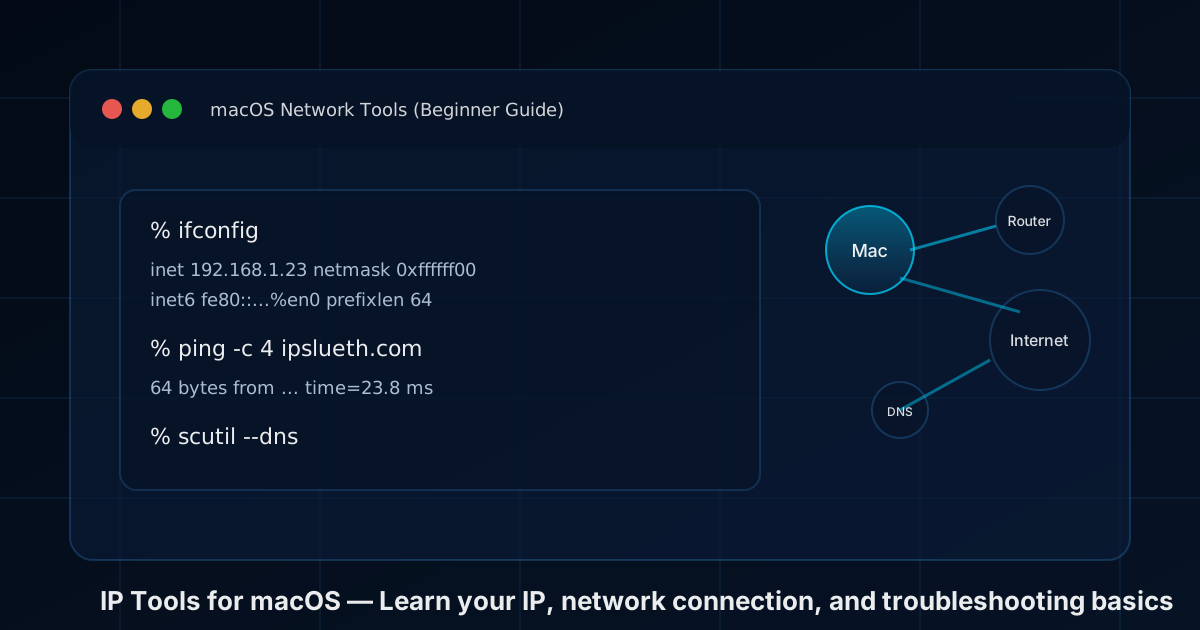
If your Wi‑Fi says “Connected” but things still feel broken, don’t worry — macOS includes built-in tools that can quickly answer questions like: “What’s my IP address?”, “Is DNS working?”, and “Where is my connection failing?” This guide explains the basics in plain English.
Before you start: public IP vs local (private) IP
You usually have two different “IP addresses”:
- Local (private) IP: used inside your home/office network (often starts with 192.168…, 10…, or 172.16…).
- Public IP: the address websites see when you go online (often owned by your ISP or VPN).
IPSleuth can show your public IP. The macOS tools below mostly show your local IP and connection details.
1) System Settings (the easiest way)
Best for: quickly seeing your current network, IP address, router, and DNS settings without using the Terminal.
- Open System Settings
- Go to Network
- Select Wi‑Fi or Ethernet, then look for Details… or Advanced… (varies by macOS version)
Look for: IP address, Subnet Mask, Router (Gateway), and DNS servers.
2) ifconfig (see your network interfaces)
Best for: seeing IP addresses on your Mac’s network adapters (Wi‑Fi is often en0).
ifconfig
You’ll usually see lines like inet … (IPv4) and inet6 … (IPv6).
3) ipconfig getifaddr en0 (quickly show Wi‑Fi IPv4)
Best for: a fast “just tell me the IP” command.
ipconfig getifaddr en0
If you’re on Ethernet, your interface may be en1 (or another). If the command prints nothing, you might be using a different interface.
4) ping (quick “can I reach it?” test)
Best for: checking basic connectivity and packet loss.
ping -c 4 ipslueth.com
If you see replies, you can reach the target. If you see timeouts, a firewall, DNS issue, or a connection problem may be involved.
5) traceroute (see where the path slows down)
Best for: spotting where delays begin (your Wi‑Fi, your ISP, or farther away).
traceroute ipslueth.com
Some hops won’t respond — that’s normal. Focus on patterns, not a single missing hop.
6) dig / nslookup (DNS troubleshooting)
Best for: when a site says it can’t be found, but your internet seems fine.
dig ipslueth.com
Or:
nslookup ipslueth.com
If DNS fails, the site name can’t be translated into an IP address, so your browser can’t connect.
7) scutil --dns (see what DNS macOS is really using)
Best for: understanding DNS on macOS when things look confusing (VPNs and multiple networks can affect it).
scutil --dns
8) networksetup (Wi‑Fi name, DNS servers, and more)
Best for: checking the Wi‑Fi network name and viewing/changing DNS servers.
networksetup -getairportnetwork en0
networksetup -getdnsservers Wi-Fi
Note: the service name is usually Wi-Fi (with a hyphen).
9) netstat (see active connections)
Best for: seeing what your Mac is currently connected to.
netstat -an
Tip: If you want to see which app owns a connection, many people use lsof -i (also built-in on macOS).
lsof -i -n -P
10) route (find your default gateway)
Best for: confirming which router your Mac sends internet traffic through.
route -n get default
Common “what should I do?” scenarios
“Wi‑Fi is connected, but the internet doesn’t work”
- Confirm you have a local IP:
ipconfig getifaddr en0 - Find your router:
route -n get default - Ping your router (use the gateway IP shown above)
- Ping a public IP:
ping -c 4 1.1.1.1(tests internet without DNS) - If that works, test DNS:
dig ipslueth.com
“One website won’t load, but other sites work”
- Check DNS:
dig thatsite.com - Try
traceroute thatsite.comto see where it stalls
Want to see your public IP?
Visit IPSleuth “What is my IP?” to instantly see the public IPv4/IPv6 address websites see.
Disclaimer: This guide is for general education. If you’re on a work/school network, follow your organization’s IT policies.