
IP Tools for Windows (Beginner Guide)
Back to BlogPublished 2026-01-18 • Audience: beginners • Topic: Windows networking
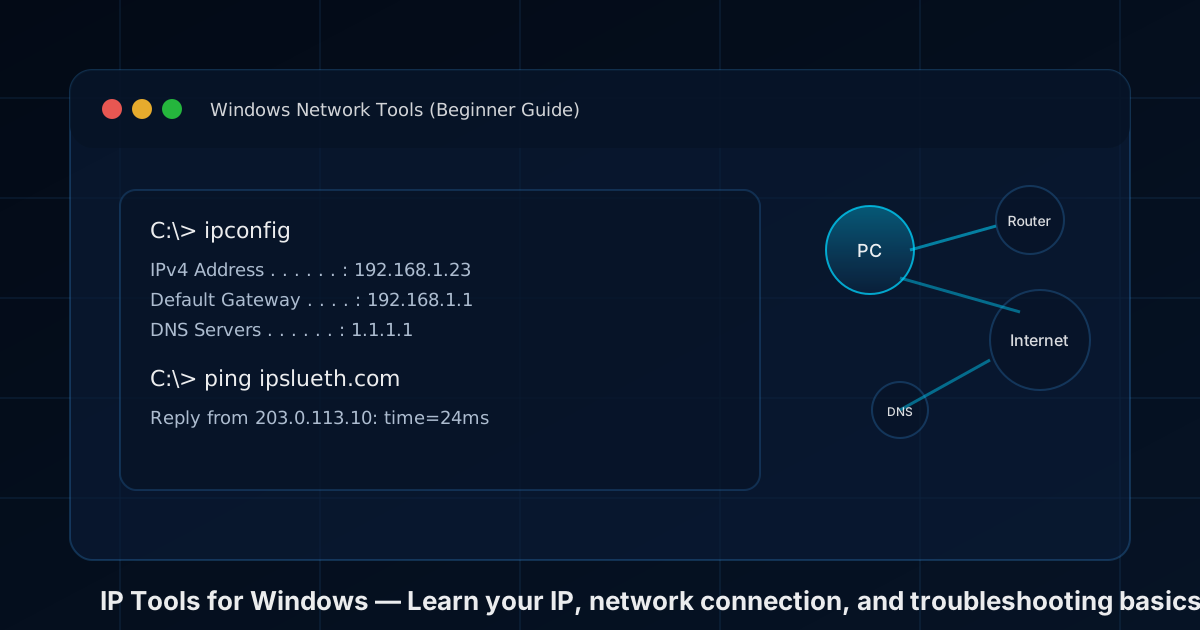
If your internet feels slow, an app can’t connect, or you just want to understand what network you’re on, Windows already includes powerful tools to help. This guide explains them in plain English and shows what to look for.
Before you start: public IP vs local (private) IP
You usually have two different “IP addresses”:
- Local (private) IP: used inside your home/office network (often starts with 192.168…, 10…, or 172.16…).
- Public IP: the address websites see when you go online (often owned by your ISP or VPN).
IPSleuth can show your public IP. Windows tools often show your local IP and connection details.
1) ipconfig (the “what network am I on?” tool)
Best for: finding your local IP, your router (default gateway), and your DNS servers.
Open Command Prompt and run:
ipconfig
What to look for:
- IPv4 Address: your local address on the network.
- Default Gateway: usually your router (often ends in .1).
- DNS Servers: who translates names (like ipslueth.com) into IP addresses.
If you want more detail (including Wi‑Fi adapter name, DHCP info, and more):
ipconfig /all
2) ping (quick “can I reach it?” test)
Best for: checking basic reachability and whether your connection is dropping packets.
ping ipslueth.com
If you see Reply from…, you’re reaching the target. If you see Request timed out, something may be blocked (firewall) or the connection may be failing.
3) tracert (see the path your traffic takes)
Best for: understanding where a connection slows down (your Wi‑Fi, your ISP, or farther out on the internet).
tracert ipslueth.com
Tip: It’s normal for some hops to not respond (they may ignore traceroute probes). Focus on where delays start consistently.
4) nslookup (DNS troubleshooting)
Best for: checking if DNS is the problem when a site “can’t be found”.
nslookup ipslueth.com
If nslookup fails but other sites work, the domain may have a DNS issue. If nslookup fails for many sites, your DNS server or network may be the issue.
5) netstat (see active connections)
Best for: seeing what your PC is connected to right now (useful for troubleshooting, not for spying).
netstat -ano
- -a: show all connections and listening ports
- -n: show addresses as numbers (faster, clearer)
- -o: show the PID (process ID)
If you find a PID you don’t recognize, you can match it to a program in Task Manager (Details tab) or with tasklist.
6) route print (your routing table)
Best for: diagnosing “strange” routing behavior, VPN routes, and which gateway Windows uses for the internet.
route print
Most users won’t need to change routes, but this helps when a VPN or corporate network overrides how traffic is sent.
7) arp -a (devices your PC has talked to on the local network)
Best for: verifying your PC can see your router and other local devices.
arp -a
ARP is used for IPv4 on local networks. If you’re on IPv6, different neighbor discovery mechanisms are used.
8) ipconfig /flushdns (fix weird name resolution)
Best for: when a site changed IPs but your PC keeps using old information.
ipconfig /flushdns
PowerShell alternatives (modern Windows commands)
If you prefer PowerShell, these are handy:
- Show IP addresses:
Get-NetIPAddress - Show DNS servers:
Get-DnsClientServerAddress - Test connectivity:
Test-NetConnection ipslueth.com
Common “what should I do?” scenarios
“Wi‑Fi is connected, but the internet doesn’t work”
- Run
ipconfig. Do you have an IPv4 address? - Ping your router:
ping 192.168.1.1(use your Default Gateway). - Ping a public IP:
ping 1.1.1.1(tests internet without DNS). - If that works, try DNS:
nslookup ipslueth.com.
“A website won’t load, but other sites work”
- Run
nslookupfor that site. - Try
ping(some sites block ping; that’s okay). - Use
tracertto see where it fails.
Want to see your public IP?
Visit IPSleuth “What is my IP?” to instantly see the public IPv4/IPv6 address websites see.
Disclaimer: This guide is for general education. If you’re on a work/school network, follow your organization’s IT policies.